暑くなってきました.明け方でも室内で30度とかに.メインPCのウェブブラウザを開きっぱなしにしていたりたまにElectronなアプリが暴走してるとCPU温度が酷いことに.
$ acpi -t
Thermal 0: ok, 101.0 degrees C
この状態で放置しているとCritical温度に達して勝手に再起動してしまったりします.(現在の設定は105℃)
$ sensors coretemp-*
coretemp-isa-0000
Adapter: ISA adapter
Package id 0:  +78.0°C  (high = +87.0°C, crit = +105.0°C)
Core 0:        +78.0°C  (high = +87.0°C, crit = +105.0°C)
Core 1:        +78.0°C  (high = +87.0°C, crit = +105.0°C)
Operaのバッテリーセーバーを使うと改善されないだろうかと試してみましたがあまり変わらないような感じ?
Linuxの電源管理を行うTLPというものがあります.NotePCなどで便利です.
これ経由でCPU のgovernor をpowersave に変えて発熱量を下げてみます.
TLPは基本的に設定ファイルを編集して設定します.設定ファイルの場所を Debian sid amd64/Ubuntu 19.10 amd64 で確認すると /etc/default/tlp です.
$ man tlp | grep FILES -A3
FILES
       /etc/default/tlp
              System-wide configuration file containing all power saving settings.
先ず,tlp を未導入の場合は導入
$ sudo apt install tlp tlp-rdw
Thinkpad の場合はこの辺りのKernel module も入れておきましょう.これは両方ともバッテリーのものでSandy Bridge 以降では acpi-call-dkms を,それより前では tp-smapi-dkms を導入します.よくわからない場合は両方を入れても大丈夫そうです.
Sandy Bridge 以降向け
$ sudo apt install acpi-call-dkms
Sandy Bridge より前向け
$ sudo apt install tp-smapi-dkms
/etc/default/tlp の以下の辺りでAC電源とバッテリー電源時の療法を powersave に変えます.
CPU_SCALING_GOVERNOR_ON_AC=powersave
CPU_SCALING_GOVERNOR_ON_BAT=powersave
tlp start で反映させます.
$ sudo tlp start
TLP started in AC mode.
とりあえずこれで暫く試すと70℃くらいで安定しています.
cpufreq で温度によってgovernor を変化させるともっとCPUを使うことも可能です.
( /etc/cpufreqd.conf の CPU Too hot! 辺り )
とりあえずこれでOKなのですが,GUI のツール無いかなと探してみると TLPUI というものを見つけたので試してみました.
TLPUI の関連パッケージを導入します.
$ sudo apt install python3-gi git python3-setuptools python3-stdeb
アドホックにインストールせず実行,
$ git clone https://github.com/d4nj1/TLPUI
$ cd TLPUI
$ python3 -m ./tlpui
若しくはTLPUI のsource を入手してpkg を作成してインストールして実行します.
$ git clone https://github.com/d4nj1/TLPUI
$ cd TLPUI
$ python3 setup.py --command-packages=stdeb.command bdist_deb
$ sudo dpkg -i ./deb_dist/python3-tlpui_0.1-1_all.deb
$ which tlpui
/usr/bin/tlpui
$ tlpui
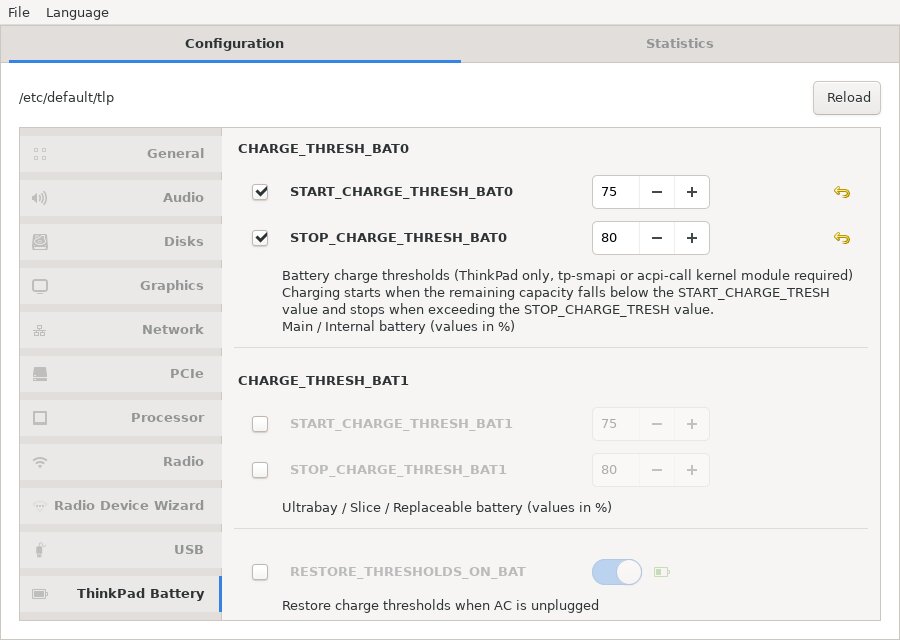
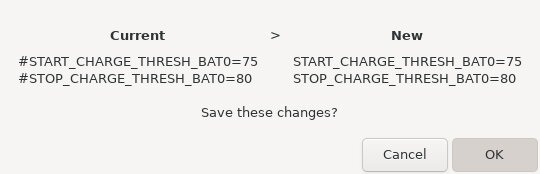
一般ユーザで実行すると裏の端末で設定反映時に認証が走るのですが,認証に成功しても設定ファイルの書き換えがうまく行きませんでした.

sudo で実行すると問題無さそうです.
$ sudo tlpui
Software still in Beta status ということで未だβですがお手軽で便利そうです.
でもβなので設定ファイルのバックアップは取っておいたほうが良さそうです.
$ git show|head -1
commit 372463ba033df12dfa5c6c918f0b65c148f1ffac
$ dpkg-query -W acpi lm-sensors tlp tlp-rdw acpi-call-dkms python3-gi git python3-setuptools python3-stdeb python3-all
acpi    1.7-1.1
acpi-call-dkms
git     1:2.23.0~rc1-1
lm-sensors      1:3.5.0-3
python3-all     3.7.3-1
python3-gi      3.32.2-1
python3-setuptools      41.0.1-1
python3-stdeb   0.8.5-3
tlp     1.2.2-1
tlp-rdw 1.2.2-1
$ lsb_release -dr
Description:    Debian GNU/Linux bullseye/sid
Release:        unstable
$ uname -m
x86_64
$ git show|head -1
commit 372463ba033df12dfa5c6c918f0b65c148f1ffac
$ dpkg-query -W acpi lm-sensors tlp tlp-rdw tp-smapi-dkms python3-gi git python3-setuptools python3-stdeb python3-all
acpi    1.7-1.1
git     1:2.20.1-2ubuntu1
lm-sensors      1:3.5.0-3ubuntu1
python3-all     3.7.3-1
python3-gi      3.32.0-1
python3-setuptools      41.0.1-1
python3-stdeb   0.8.5-3
tlp     1.2.2-1
tlp-rdw 1.2.2-1
tp-smapi-dkms   0.43-1
$ lsb_release -dr
Description:    Ubuntu Eoan Ermine (development branch)
Release:        19.10
$ uname -m
x86_64