Cloudflare の速度計測サイトのspeed.cloudflare.com をTUI で計測できるcloudflare-speed-cli というものを知ったので試してみました.
cloudflare-speed-cli はRust 製でGPL-3.0 license です.
類似のもので,speedtest.net を計測できるspeedtest-cli をよく使っていますが,Cloudflare も使えると便利そうです.
cloudflare-speed-cli はGitHub Releases にはLinux x86_64, aarch64, macOS aarch64, x86_64, Windows x86_64 のバイナリがあります.しかし例によってRaspberry Pi bookworm armhf(Arm 32bit)でも試してみます.
Rust 関連はasciimena 3.0 をbuild したときに入れたものからrustup で1.92.0 にしたものを使います.
cargo install で時間が掛かりますが特につまづいたりせずbuild できました.
$ cargo --version
warning: `/home/matoken/.cargo/config` is deprecated in favor of `config.toml`
  |
  = help: if you need to support cargo 1.38 or earlier, you can symlink `config` to `config.toml`
cargo 1.92.0 (344c4567c 2025-10-21)
$ cargo install --git https://github.com/kavehtehrani/cloudflare-speed-cli --features tui
$ cloudflare-speed-cli --help
Cloudflare-based speed test with optional TUI

Usage: cloudflare-speed-cli [OPTIONS]

Options:
      --base-url <BASE_URL>
          Base URL for the Cloudflare speed test service [default: https://speed.cloudflare.com]
      --json
          Print JSON result and exit (no TUI)
      --text
          Print text summary and exit (no TUI)
      --download-duration <DOWNLOAD_DURATION>
          Download phase duration [default: 10s]
      --upload-duration <UPLOAD_DURATION>
          Upload phase duration [default: 10s]
      --idle-latency-duration <IDLE_LATENCY_DURATION>
          Idle latency probe duration (pre-test) [default: 2s]
      --concurrency <CONCURRENCY>
          Concurrency for download/upload workers [default: 6]
      --download-bytes-per-req <DOWNLOAD_BYTES_PER_REQ>
          Bytes per download request [default: 10000000]
      --upload-bytes-per-req <UPLOAD_BYTES_PER_REQ>
          Bytes per upload request [default: 5000000]
      --probe-interval-ms <PROBE_INTERVAL_MS>
          Probe interval in milliseconds [default: 250]
      --probe-timeout-ms <PROBE_TIMEOUT_MS>
          Probe timeout in milliseconds [default: 800]
      --experimental
          Enable experimental features (TURN fetch + UDP-like loss probe)
      --export-json <EXPORT_JSON>
          Export results as JSON
      --export-csv <EXPORT_CSV>
          Export results as CSV
      --auto-save <AUTO_SAVE>
          Use --auto-save true or --auto-save false to override (default: true) [default: true] [possible values: true, false]
      --interface <INTERFACE>
          Bind to a specific network interface (e.g., ens18, eth0)
      --source <SOURCE>
          Bind to a specific source IP address (e.g., 192.168.10.0)
      --certificate <CERTIFICATE>
          Path to a custom TLS certificate file (PEM or DER format)
  -h, --help
          Print help
  -V, --version
          Print version
$ cloudflare-speed-cli --version
cloudflare-speed-cli 0.3.1
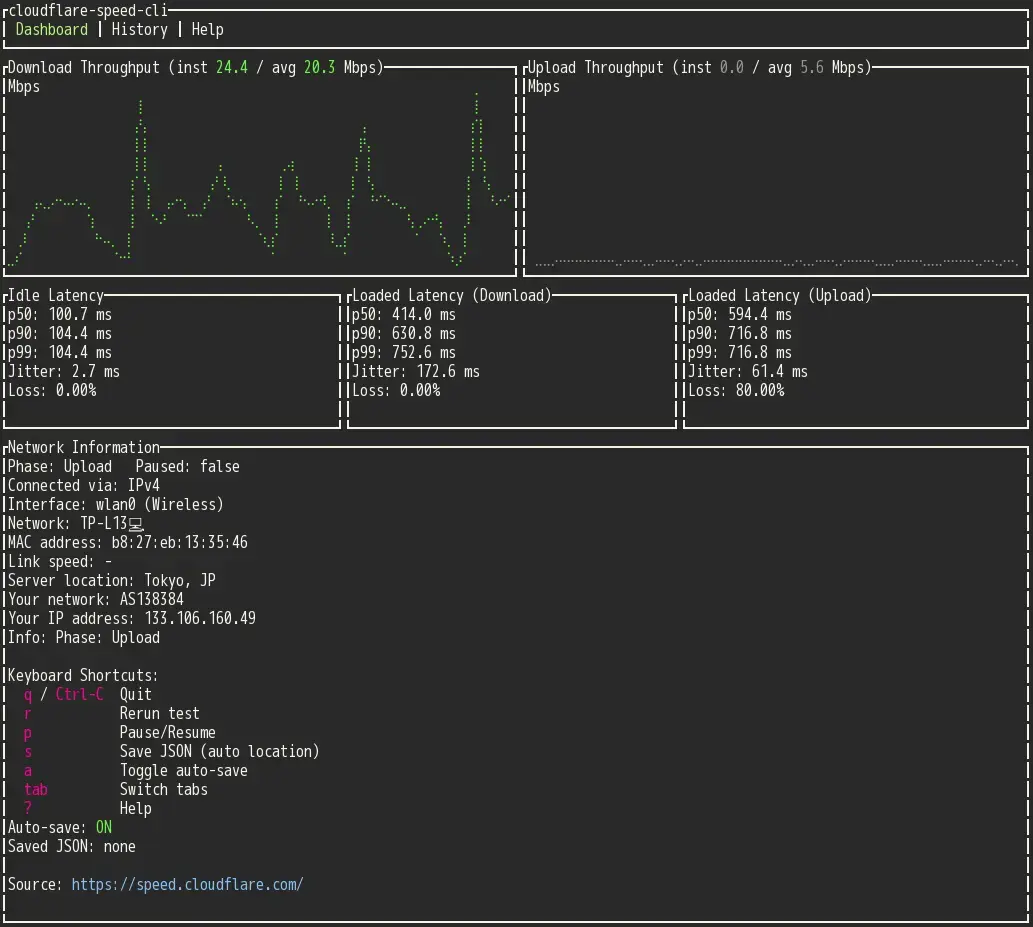
早速試してみます.cloudflare-speed-cli をオプションなしで実行するとTUI で実行されます.起動してすぐに計測が始まり,既定値では計測結果が保存されます.tab key でHistory ページに遷移すると過去の計測結果を閲覧したりエクスポートしたりできます.

--text オプションでcli モードですが,プログレスが大量に出てちょっと使いづらい感じです.

プロスレス部分はSTDERR なのでそれを捨ててしまってもいいかもしれません
$ cloudflare-speed-cli --text 2>/dev/null
IP/Colo/ASN: 133.106.160.49 / NRT / 138384 (-)
Download: 23.73 Mbps
Upload:   2.47 Mbps
Idle latency p50/p90/p99: 98.9/110.7/110.7 ms (loss 0.0%, jitter 10.2 ms)
Loaded latency (download) p50/p90/p99: 438.0/578.6/755.2 ms (loss 0.0%, jitter 130.1 ms)
Loaded latency (upload) p50/p90/p99: 654.8/794.1/794.1 ms (loss 45.5%, jitter 144.4 ms)
こんな感じで定期的に計測するのにも便利かもと思いましたが,cli モードでは既定値では結果を保存しないようです.
$ watch -n 3600 -- cloudflare-speed-cli --text
--auto-save true も追加すると結果が保存されます.
$ watch -n 3600 -- cloudflare-speed-cli --text --auto-save true
ただ,以下のようにTUI モードの計測時のログには --interface を指定してもInterface やAP 名は保存されないようです.
│ 3.   2025-12-31 06:30:11 +09:00  DL   20.69 Mbps  UL    4.66 Mbps  Idle p50  103.7 ms  -  (1)
│ 4.   2025-12-31 06:08:33 +09:00  DL   21.73 Mbps  UL    3.16 Mbps  Idle p50  100.7 ms  wlan0  TP-L13💻 (2)
--textでcli モードで実行したときの結果TUI モードで実行したときの結果
SEE ALSO
$ speedtest-cli
Retrieving speedtest.net configuration...
Testing from Rakuten Mobile Network (133.106.160.42)...
Retrieving speedtest.net server list...
Selecting best server based on ping...
Hosted by GSL Networks (Tokyo) [0.26 km]: 60.882 ms
Testing download speed................................................................................
Download: 12.70 Mbit/s
Testing upload speed......................................................................................................
Upload: 2.69 Mbit/s
$ speedtest

   Speedtest by Ookla

      Server: IPA CyberLab 400G - Tokyo (id: 48463)
         ISP: Rakuten Mobile Network
Idle Latency:    50.15 ms   (jitter: 1.41ms, low: 48.98ms, high: 52.36ms)
    Download:    20.75 Mbps (data used: 19.9 MB)
                262.40 ms   (jitter: 71.32ms, low: 72.73ms, high: 398.26ms)
      Upload:     2.96 Mbps (data used: 1.6 MB)
                779.27 ms   (jitter: 95.79ms, low: 75.05ms, high: 1148.99ms)
 Packet Loss:     0.0%
Result URL: https://www.speedtest.net/result/c/e1a349cf-53eb-4d63-b8f4-8550dabd772d$ python -m fastcli -v Approximate download speed: 17.48 Mbps
Likes