先日Raspberry Pi向けのOSのRaspbian 2018-06-27がリリースされました.
2018-06-27:* New first-boot configuration wizard added* Recommended Software installer added* Bluej, Greenfoot, NodeRED, Claws Mail, VNC Viewer removed from image - can now be installed from Recommended Applications* Qpdfview PDF viewer installed instead of Xpdf* Version 65.0 of Chromium browser included, with latest Flash player* Volume up / down keys now change by 5% increments and affect currently-selected output device rather than internal device only* Network plugin now remembers previously-entered WiFi network passwords when prompting for reconnection* Serial port and serial console can now be switched separately in Raspberry Pi Configuration* Lxkeymap keyboard language setting application removed - replaced with dialog within Raspberry Pi Configuration* Wifi country and keyboard language setting dialogs in Raspberry Pi Configuration now callable from other applications* New version of Piboto font included to render with correct weight under some rogue applications* Reconnection to Bluetooth audio devices on reboot improved* Disable click-to-rename behaviour in file manager if single-click selection enabled* Appearance Settings dialog makes config changes to some Qt files to match selected theme* MIME file type associations improved* Multiple desktop management options removed from mouse middle-click menu* Menu shortcuts to Raspberry Pi website amended* Python 2 IDLE menu link removed* Sample Magpi PDF installed in /home/pi/MagPi* Various minor tweaks, bug fixes and appearance changes* Bluetooth updates- Firmware with Bluetooth 4.2 features- SCO profile suppot added via bthelper.service* Linux kernel 4.14.50+* Raspberry Pi firmware 748fb17992426bb29d99224b93cb962fefbdc833
* New first-boot configuration wizard added が気になります.初回起動時にセットアップウィザードが走るようになったようです.気になるので試してみました.
先ずはOSイメージを入手.
以下のページから RASPBIAN STRETCH WITH DESKTOP の方を入手します.
適当な方法でイメージをSD cardに書き込みます.
- ブータブルUSBメモリを作るEtcherを試す – matoken’s meme 🏛️
- マルチUSB書き込みツールのPopsicle – matoken’s meme 🏛️
- ブートUSBメモリなどを作るmkusbを試してみる – matoken’s meme 🏛️
- Linux 環境での Raspberry Pi 向け OS 書き込みTips – matoken’s meme 🏛️
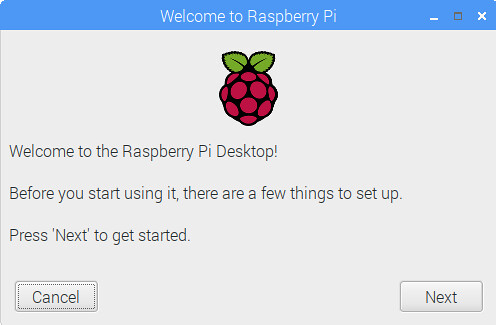
HDMIモニタに接続,若しくはVNC経由(今回は後者)で起動すると「Welcome to Raspberry Pi」というウィンドウが表示されます.
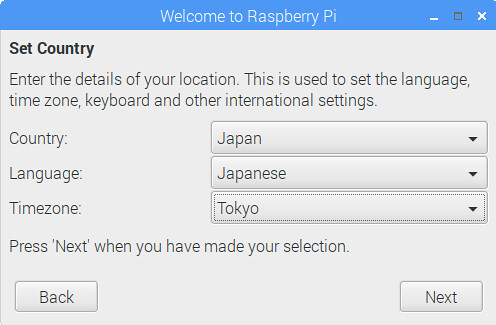
まずは国関連の設定.以下は日本でに言語環境で利用する場合です.
Country: Japan
Language : Japanise
Timezone: Tokyo
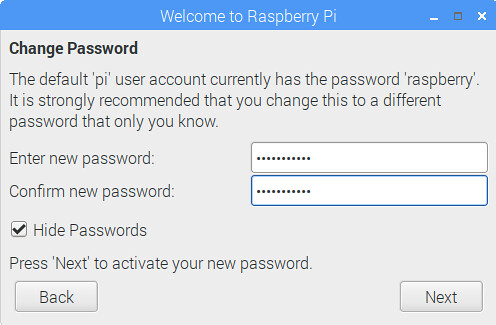
次はpi アカウントのパスワードの設定です.初期状態ではraspberryですが,ここのままだとsshやVNCなどのリモート接続を有効にすると誰でも入れてしまい乗っ取られてしまうのでぜひ変更しましょう.(piアカウントを無効にして別のユーザを作るのもいいですね)
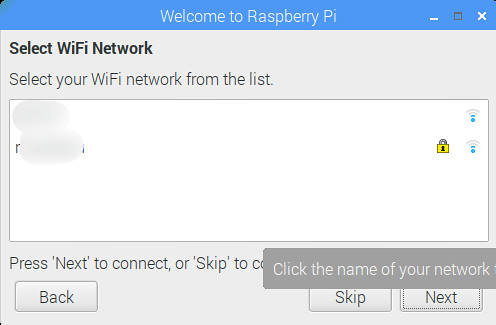
次にWi-Fiの設定です.今回試した Raspberry Pi は Raspberry Pi 2 B でWi-Fiは付いていませんがUSBのWi-Fiドングルを刺していたらこの画面になりました.付けていなくてもRaspberry Pi 3 B / Raspberry Pi 3 B+ / Raspberry Pi Zero W でも設定できると思います.
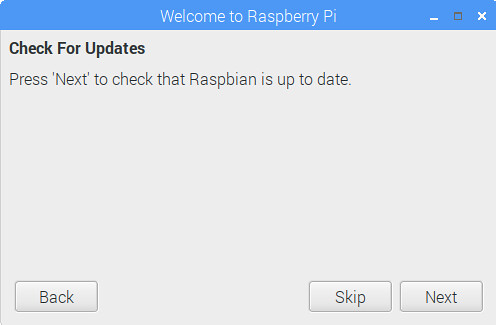
次は Update です.しばらく時間がかかります.
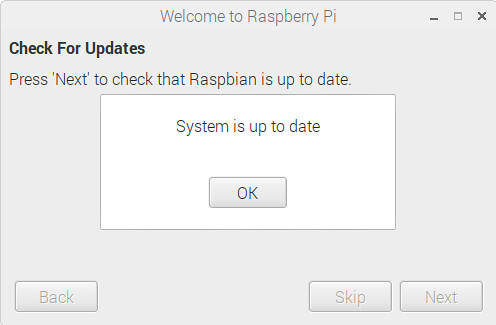
Updateが終了すると「System is up to date」と表示されます.
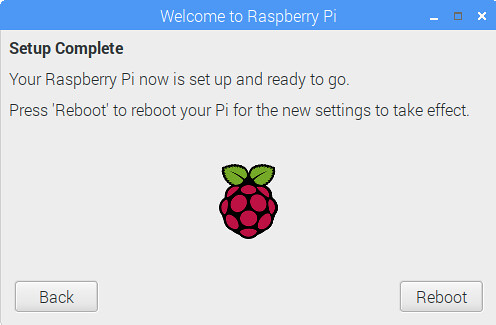
これでおしまい.「Reboot」ボタンで設定が反映されます.
もしまたこのウィザードを実行したい場合はpiwizコマンドで実行できます.
$ sudo -i piwiz
もし,以前からのRaspbianで実行したい場合はpiwizパッケージを導入することで実行できるようになります.
$ sudo apt update$ sudo apt install piwiz
raspi-configやrc_guiの簡易版みたいな感じですね.
画面は英語ですが,言語ファイルがあるので日本語化もできそうです.しかし,日本語化が反映されるのは設定後?となるとあまり意味はないですかね…….