witr (why-is-this-running) はプロセス名,PID,ポート番号からそれがなぜ実行されているかを調べて表示してくれます.
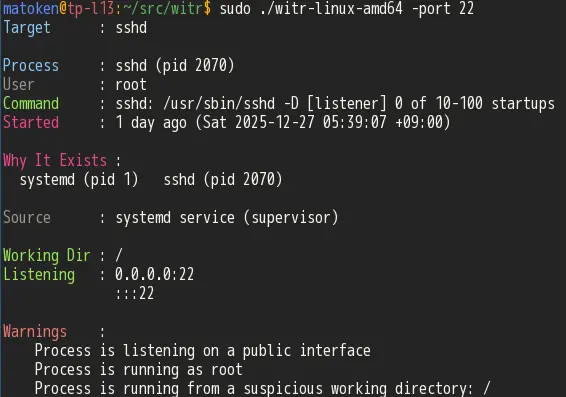
例えば以下はport 22 を調べています.sshd が実行されていることなどがわかります.
$ sudo ./witr -port 22
Target      : sshd

Process     : sshd (pid 581)
User        : root
Command     : sshd: /usr/sbin/sshd -D [listener] 0 of 10-100 startups
Started     : 4 days ago (Thu 2025-12-25 18:10:39 +09:00)

Why It Exists :
  systemd (pid 1)   sshd (pid 581)

Source      : systemd service (supervisor)

Working Dir : /
Listening   : 0.0.0.0:22
              :::22

Warnings    :
    Process is listening on a public interface
    Process is running as root
    Process is running from a suspicious working directory: /
メモリをたくさん使っている(1GB+)と警告が表示されたりもします
$ sudo ~/usr/local/bin/witr -pid 10522
Target      : firefox.real

Process     : firefox.real (pid 10522) [high-mem]
User        : matoken
Command     : /usr/bin/firefox.real
Started     : 2 days ago (Sat 2025-12-27 05:39:41 +09:00)

Why It Exists :
  systemd (pid 1) → firefox.real (pid 10522)

Source      : systemd service (supervisor)

Working Dir : /home/matoken

Warnings    :
  • Process is using high memory (>1GB RSS)
以下はプロセスID 524 からglance がcron から起動しているのがわかります.
$ ./witr -pid 524
Target      : glance

Process     : glance (pid 524) {forked}
User        : matoken
Command     : /home/matoken/bin/glance -config /home/matoken/.config/glance.yml
Started     : 4 days ago (Thu 2025-12-25 18:10:36 +09:00)
Restarts    : 1

Why It Exists :
  systemd (pid 1) → cron (pid 448) → cron (pid 492) → sh (pid 523 glance (pid 524)

Source      : systemd service (supervisor)

Working Dir : /home/matoken
Listening   : :::8080

Warnings    :
    Process is listening on a public interface
ポートスキャンしてopen しているポート全てに対してwitr を実行してみたりも.
$ sudo nmap -p 0-65535 localhost | grep open | cut -f1 -d\/ | xargs -n1 sudo ./witr -port
witr の導入
witr の導入はinstall.sh がおすすめされていますがあまり好みの方法ではありません.中を見るとGitHub Releases から環境にあったバイナリをダウンロードして, /usr/local/bin 以下にインストールしています.バイナリはLinux amd64, arm64 が用意してあります.
amd64 環境でには以下のような手順で手動で導入しました.
Note | v0.1.1 でmacOS amd64/arm64 も追加されました. |
$ wget -c https://github.com/pranshuparmar/witr/releases/latest/download/witr-linux-amd64 (1)
$ install -m 755 ./witr-linux-amd64 ~/usr/local/bin/witr (2)
$ which witr
/home/matoken/usr/local/bin/witr
$ rm witr-linux-amd64
$ witr (3)
Usage: witr [--pid N | --port N | name] [--short] [--tree] [--json] [--warnings] [--no-color] [--env] [--help] [--version]
  --pid <n>         Explain a specific PID
  --port <n>        Explain port usage
  --short           One-line summary
  --tree            Show full process ancestry tree
  --json            Output result as JSON
  --warnings        Show only warnings
  --no-color        Disable colorized output
  --env             Show only environment variables for the process
  --help            Show this help message
  --version         Show version and exit
$ witr --version
witr v0.1.1 (commit b50f08b, built 2025-12-28)
witr の最新のlinux amd64 バイナリ版をダウンロード
好みの場所にインストール
USAGE
Linux armhf(arm 32bit) でも動かす
Raspberry Pi bookworm armhf でも動かしたいと思います.
build しようとしたらまずgolang が古いと言われたのでまずは新しいgolang の入手から.
package版golang は1.23 だが1.25.5+ が必要
$ /usr/bin/go build -ldflags "-X main.version=0.1.0 -X main.commit=$(git rev-parse --short HEAD) -X 'main.buildDate=$(date +%Y-%m-%d)'" -o witr-linux-arm32 ./cmd/witr
go: errors parsing go.mod:
/home/matoken/src/witr/go.mod:3: invalid go version '1.25.5': must match format 1.23
go.dev からarmv6 バイナリを入手してパスを通す
$ wget -c https://go.dev/dl/go1.25.5.linux-armv6l.tar.gz (1)
$ mkdir -p ~/usr/local
$ tar -C ~/usr/local -xzf go1.25.5.linux-armv6l.tar.gz (2)
$ rm go1.25.5.linux-armv6l.tar.gz
$ PATH=~/usr/local/go/bin:$PATH (3)
$ which go
/home/matoken/usr/local/go/bin/go
$ go version (4)
go version go1.25.5 linux/arm
$ cat << EOF > hello.go (5)
package main
import "fmt"
func main() {
	fmt.Println("Hello World")
}
EOF
$ go run hello.go (6)
Hello World
Linux armv6l のバイナリをダウンロード
アーカイブを適当な場所に展開
パスを通しておく(一時的な例)
バージョン確認
hello world を用意
動作確認
witr をビルド
$ git clone https://github.com/pranshuparmar/witr/
$ cd witr
$ go build -ldflags "-X main.version=0.1.0 -X main.commit=$(git rev-parse --short HEAD) -X 'main.buildDate=$(date +%Y-%m-%d)'" -o witr-linux-arm32 ./cmd/witr
$ ./witr-linux-arm32 --version
witr 0.1.0 (commit a2dc413, built 2025-12-28)
Reposts