日本語入力システムのMeltype 1.5.0がリリースされました。
Linux関連の差分を見ていくと、
Linuxに設定画面 meltype-settings が追加されました。これに伴い依存関係が増えているようです。
これまでも.rpmはありましたが、RHEL 9 系に対応したようです。
https://github.com/yksr-melt/Meltype/pull/1518インストール、アンインストールスクリプトが廃止]になりました。
旧スクリプトからの移行は Linux のインストール手順に書かれています。
DebianでのMeltypeアップグレード
GitHub releasesからamd64の.debをダウンロードしてapt installで上書きしました。
$ wget -c https://github.com/yksr-melt/Meltype/releases/download/v1.5.0/meltype_1.5.0_amd64.deb
$ $ sha256sum meltype_1.5.0_amd64.deb
b7d6930de03262e00b31061ce88d29830a70a4f7d957e59f03a145810fed442e  meltype_1.5.0_amd64.deb
$ vt file `sha256sum meltype_1.5.0_amd64.deb | cut -f1 -d\ ` --format json | jq '.[0].last_analysis_stats'
{
  "confirmed-timeout": 0,
  "failure": 1,
  "harmless": 0,
  "malicious": 0,
  "suspicious": 0,
  "timeout": 4,
  "type-unsupported": 14,
  "undetected": 56
}
$ sudo apt install ./meltype_1.5.0_amd64.deb
この後fcitx5-config-qt を起動して更新ボタンで反映します。
設定画面の起動
設定画面を meltype-settings で起動しようとしたのですが、以下のようなウィンドウが表示されるだけでうまくいきません。
Meltypeの設定を開けません
/home/matoken/.local/share/Meltype/config.schema.jsonがありません。
Meltypeで一度文字を入力してから、設定画面を開き直してください
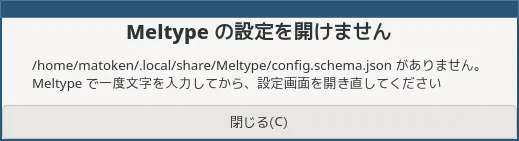
しばらく入力した後でも駄目で config.schema.json が作られません。
ファイルを作ってあげればと思いましたが、これはきりがなさそうだなと諦めました。
$ touch ~/.local/share/Meltype/config.schema.json
$ meltype-settings
Traceback (most recent call last):
  File "/usr/bin/meltype-settings", line 310, in activate
    schema = read_schema(directory)
  File "/usr/bin/meltype-settings", line 114, in read_schema
    return json.loads(path.read_text(encoding="utf-8"))
           ~~~~~~~~~~^^^^^^^^^^^^^^^^^^^^^^^^^^^^^^^^^^
  File "/usr/lib/python3.14/json/__init__.py", line 352, in loads
    return _default_decoder.decode(s)
           ~~~~~~~~~~~~~~~~~~~~~~~^^^
  File "/usr/lib/python3.14/json/decoder.py", line 345, in decode
    obj, end = self.raw_decode(s, idx=_w(s, 0).end())
               ~~~~~~~~~~~~~~~^^^^^^^^^^^^^^^^^^^^^^^
  File "/usr/lib/python3.14/json/decoder.py", line 363, in raw_decode
    raise JSONDecodeError("Expecting value", s, err.value) from None
json.decoder.JSONDecodeError: Expecting value: line 1 column 1 (char 0)
$ echo '{}' > ~/.local/share/Meltype/config.schema.json
$ meltype-settings
Traceback (most recent call last):
  File "/usr/bin/meltype-settings", line 311, in activate
    config = ConfigFile(directory, schema)
  File "/usr/bin/meltype-settings", line 72, in __init__
    self.settings_version = schema["properties"]["SettingsVersion"]["default"]
                            ~~~~~~^^^^^^^^^^^^^^
KeyError: 'properties'
$ echo '{["meltype-settings"]}' > ~/.local/share/Meltype/config.schema.json
$ meltype-settings
Traceback (most recent call last):
  File "/usr/bin/meltype-settings", line 310, in activate
    schema = read_schema(directory)
  File "/usr/bin/meltype-settings", line 114, in read_schema
    return json.loads(path.read_text(encoding="utf-8"))
           ~~~~~~~~~~^^^^^^^^^^^^^^^^^^^^^^^^^^^^^^^^^^
  File "/usr/lib/python3.14/json/__init__.py", line 352, in loads
    return _default_decoder.decode(s)
           ~~~~~~~~~~~~~~~~~~~~~~~^^^
  File "/usr/lib/python3.14/json/decoder.py", line 345, in decode
    obj, end = self.raw_decode(s, idx=_w(s, 0).end())
               ~~~~~~~~~~~~~~~^^^^^^^^^^^^^^^^^^^^^^^
  File "/usr/lib/python3.14/json/decoder.py", line 361, in raw_decode
    obj, end = self.scan_once(s, idx)
               ~~~~~~~~~~~~~~^^^^^^^^
json.decoder.JSONDecodeError: Expecting property name enclosed in double quotes: line 1 column 2 (char 1)
$ rm ~/.local/share/Meltype/config.schema.json
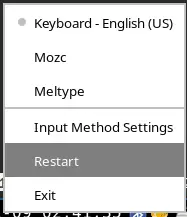
結局、fcitx5 を再起動することで config.schema.json が作成されたようです。Meltype 更新時に更新ボタンではなく再起動ボタンを押せばよかったのかもしれません。
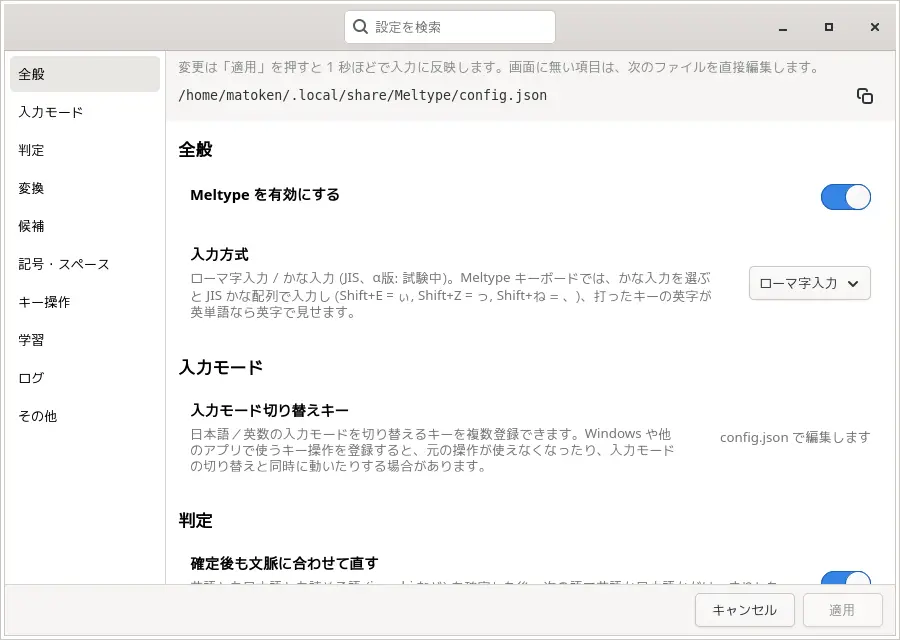
設定画面はこんな感じ。結構大量。上部の「設定を検索」が活躍しそうです。
環境
$ dpkg-query -W meltype fcitx5
fcitx5  5.1.23-1
meltype 1.5.0
$ lsb_release -dr
Description:    Debian GNU/Linux forky/sid
Release:        n/a
$ arch
x86_64
Likes